
You need to get familiar with three steps when learning how to use McGraw Hill Connect. First, you need to log in, access the class section, and finish each assignment within its deadline. But remember that your instructor sets the rules of each task. These influence your grade and number of attempts. The instructor also decides whether late work is allowed and if an extension is possible.
In this guide, we will discuss where each rule appears. We have also shared some tips on what to do when something goes wrong. Keep reading to learn how McGraw Hill Connect assignments, attempts, and deadlines work from the student side.
Key Takeaways on How to Use McGraw Hill Connect
- How many times you can attempt, if a late penalty applies, and whether an assignment allows deadline extension — all are decided by the instructor.
- To check your due tasks in 48 hours, you need to check the To Do list.
- Your score recording stops in SmartBook after the due date passes.
- You can ask for an extension before the deadline by directly speaking with the instructor with valid reasons.
What Is McGraw Hill Connect and Who Controls Your Course Settings?
McGraw Hill Connect is a platform where students complete online homework and take assessments. The assignment syllabus generally links to your course textbooks. The platform itself features eBooks and adaptive reading. Your school may also integrate this platform through an LMS such as Canvas or Brightspace.
Your instructor primarily controls the course settings. They build each assignment and decide the following:
- When a student can open it and when it is due
- How many attempts a student gets
- Whether late work is accepted, and the penalty
- What a student can view after the submission
The interesting part is that two online classes on Connect can work very differently. This is why reading your syllabus alongside Connect is important.
How to Use McGraw Hill Connect as a Student: Getting Started
Your academic journey on McGraw Hill Connect begins with an instructor’s section web address or a Connect link in your LMS. Then, you have to register on the platform using your school email. All your Connect classes will display in one account.
Understanding the McGraw Hill Connect Student Dashboard
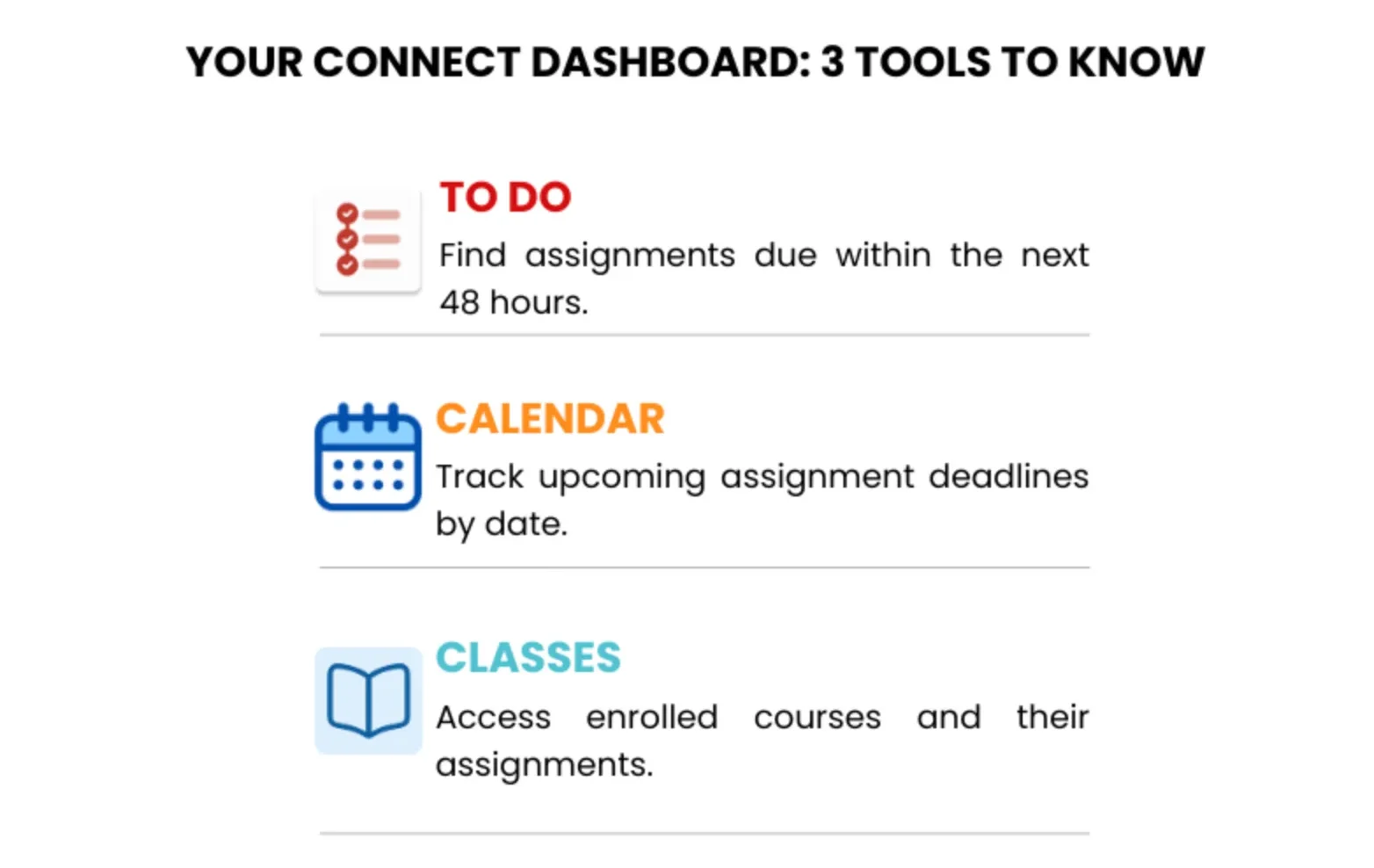
You will come across three important areas in the McGraw Hill Connect student dashboard:
- To Do: This presents the assignments due in the next 48 hours across all classes
- Calendar: This notifies you of upcoming due dates by date
- Classes: You can view every section you are enrolled in
If you want to have a detailed walkthrough of each menu, visit McGraw Hill’s Getting to Know Connect guide.
How to Use McGraw Hill Connect to Track Your Progress
To track your progress on McGraw Hill Connect, first open your results. This will show your score for each attempt. Your submission date and time will also be displayed here.
However, syncing errors happen. For example, your LMS gradebook shows a different score. In this case, ask your instructor to resync grades.
How Do I Find and Open My Assignments in McGraw Hill Connect?
It’s easy! Here are the steps:
- Select Classes
- Choose your section
- Open the assignment from the list
That is how to find assignments on McGraw Hill Connect in most courses.
If the assignment is not available for student access, you can see a lock icon. If an item is missing from To Do, either filter the list or open the section directly.
Types of McGraw Hill Connect Assignments
There are four types of question bank assignments in Connect:
- Homework: These are graded practice assignments. You may have more than one attempt.
- Practice: These are low-stakes review assignments.
- Quiz: These are shorter graded checks.
- Exam: These are high-stakes tests. You may or may not get an attempt. Also, they can sometimes be proctored
Note that SmartBook reading assignments appear separately, marked with an SB icon. Seek assignment help if you need expert assistance in completing these tasks.
What Is the Difference Between SmartBook and Regular Assignments in McGraw Hill Connect?
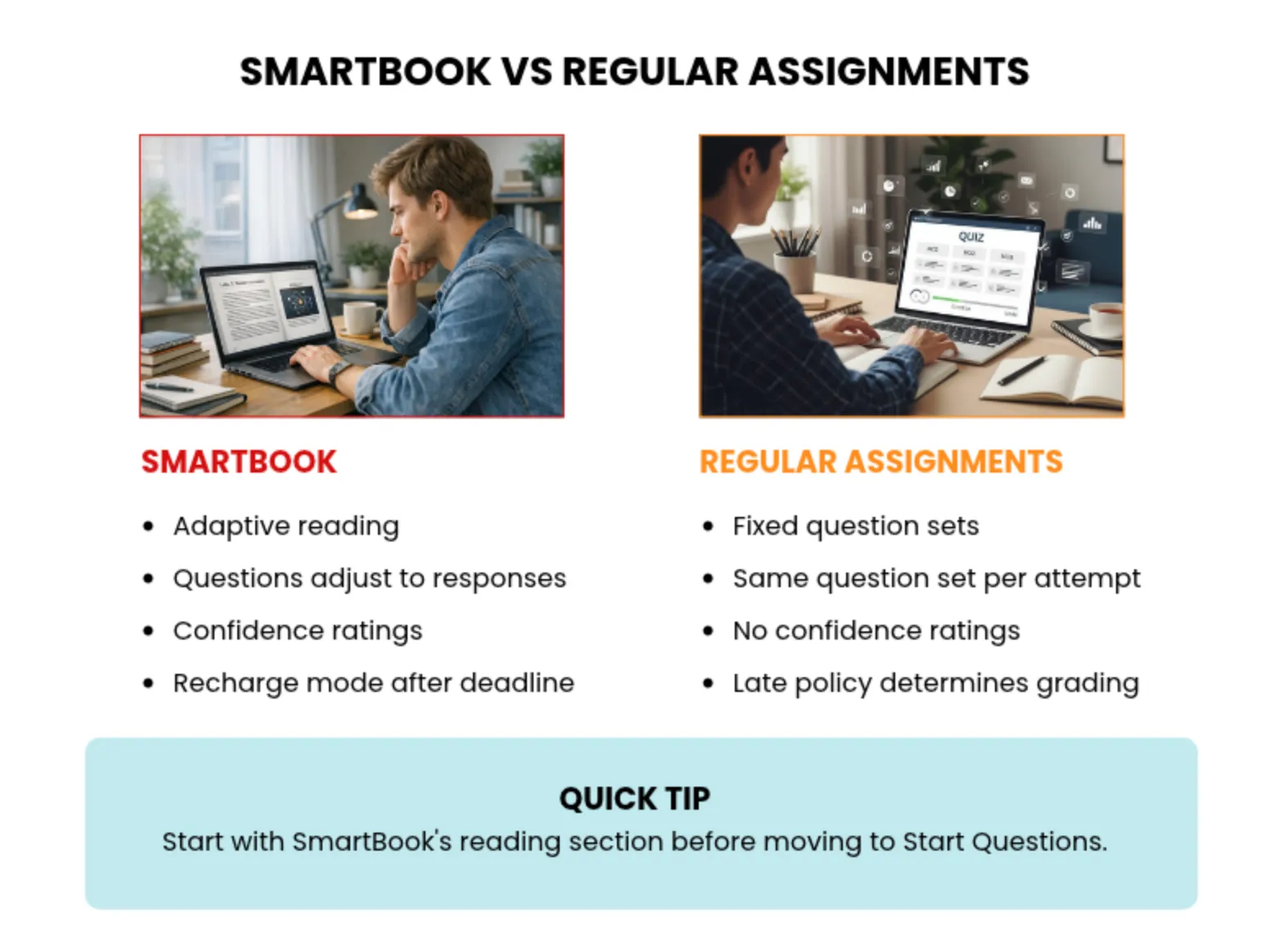
| Feature | SmartBook | Regular Assignment |
|---|---|---|
| Format | Reading plus adaptive questions | Set list of questions |
| Questions | Changes based on what you know | Same set for the attempt |
| Confidence rating | Asked with each question | Not used |
| After the due date | Scores usually stop recording; Recharge mode opens for practice | Follows the late policy |
McGraw Hill recommends selecting Start Reading before Start Questions.
How to Submit an Assignment on McGraw Hill Connect?
Answer all the questions and then click Submit on the last page. That is how to submit an assignment on McGraw Hill Connect. Saving and exiting won’t submit your work. Some teachers have auto-submission for assignments on the due date. For written tasks, cite sources and avoid plagiarism to ensure flawless submission.
McGraw Hill Connect Attempts Explained
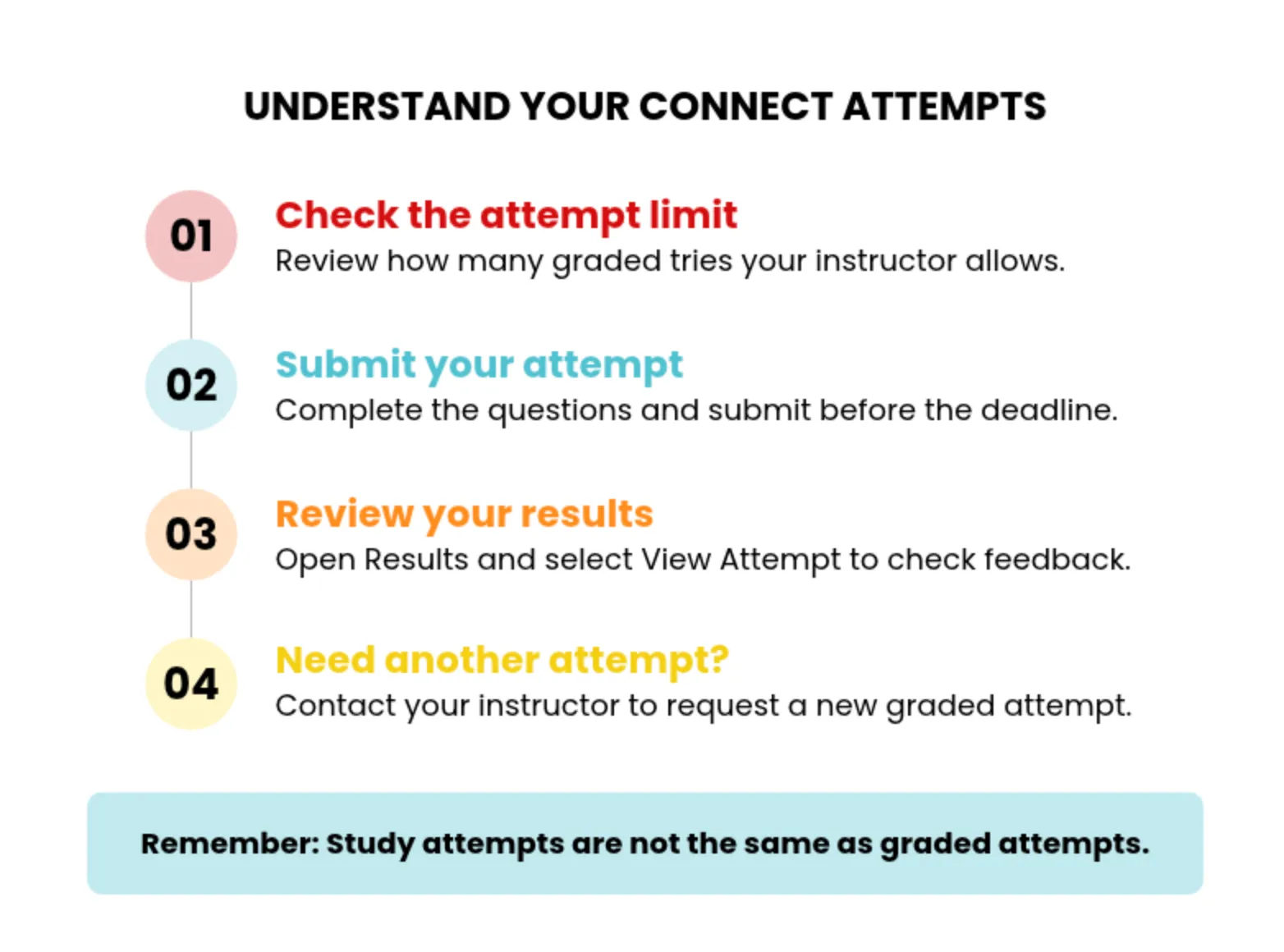
An attempt is a submitted, graded try at an assignment. McGraw Hill Connect attempts are set per assignment, so limits can vary within one class.
How Many Attempts Do I Usually Get on a McGraw Hill Connect Assignment?
It will vary from teacher to teacher. Connect allows them to make one, two, three, or any number of attempts. That is the short answer to the question: how many attempts do you get on McGraw Hill Connect? Several are allowed for homework.
In general, a single one is permissible in exams. This is why many students seek experts to take my exam for me to make sure all questions are solved on the first attempt.
Instructors can also determine if a new attempt restarts from the beginning or if it simply rewraps the questions that were missed. They can either take a cut for every extra attempt.
Can you retake a quiz on McGraw Hill Connect? If the quiz permits multiple attempts or if your instructor adds them, then you are allowed to take the quiz more than once.
Why Does My McGraw Hill Connect Assignment Say No Attempts Remaining?
You’ve exhausted your attempts or the assignment is over. To reopen another graded attempt, contact your instructor – Connect will not do it automatically. If they extend, they must include attempts in the extension. If you cannot risk exhausting attempts, paying someone to take my online class is a smart choice to get the answer right.
Study attempts will be provided for some assignments. These are called “STUDY” and are not counted in your grade.
How to See Attempts Remaining on McGraw Hill Connect?
Please read the requirements carefully for each assignment before beginning work. That is how to see attempts remaining on McGraw Hill Connect. Keep count of the number of tries with the limit. If the details are unclear, your syllabus should list it.
Does McGraw Hill Connect Count My Best Attempt or My Last Attempt?
This will depend upon your teacher’s grading criteria. Use a GPA calculator to view how course grades will affect your term average.
Connect keeps a score for each attempt. So, does McGraw Hill Connect keep your highest score? If your instructor’s policy states so.
Ask before a retake, in case a lower score could replace a higher one.
How to Review McGraw Hill Connect Assignment Results and Feedback?
Learning from previous attempts enables you to identify areas of weakness and improve your score when retaking the test:
- To view your score breakdown, go to Results in your course menu and choose View Attempt.
- Look at feedback. Read the automated explanations and teacher comments for questions that were missed.
- Use these notes to review important concepts before your next attempt.
If correct answers are not provided, your instructor may have limited feedback until everyone has turned in the answers or until the due date has passed.
The scores for LMS grade differences will be updated instantly; however, some LMS gradebooks, such as Canvas, may lag. Ensure that your teacher has configured the gradebook to record your grade and ask for a manual sync if grades are not matching.
McGraw Hill Connect Due Dates, Late Submissions, and Extensions
How Do I Check Upcoming Due Dates in McGraw Hill Connect?
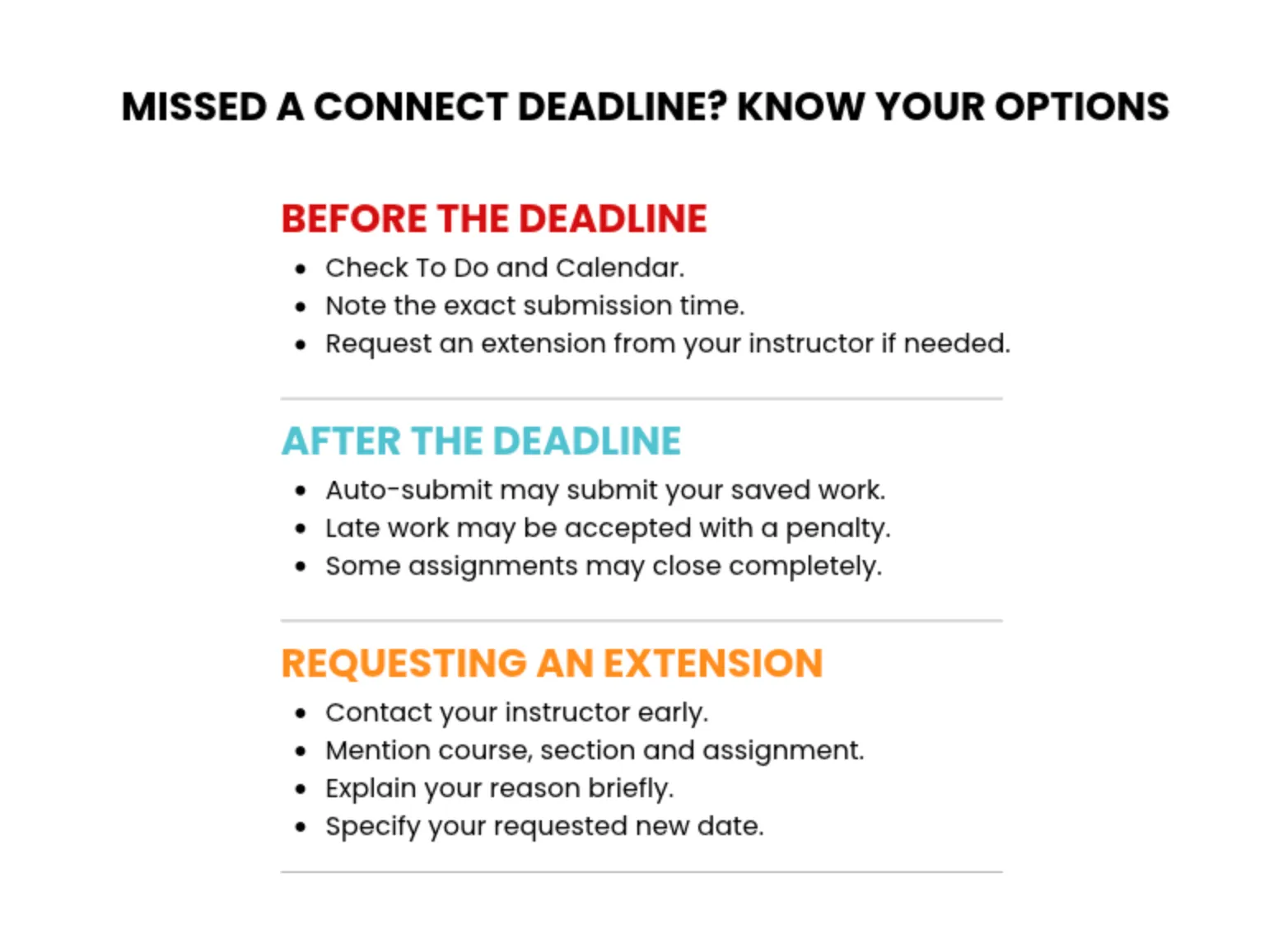
For the next 48 hours, use To Do and for later weeks, use the Calendar. McGraw Hill Connect due dates contain an exact time, not just a date, so please write the hour as well. Due dates are also visible if your class is hosted in an LMS. Our guide on how to use Canvas LMS covers that calendar.
What Happens if I Submit a McGraw Hill Connect Assignment After the Due Date?
It varies by the instructor’s late policy. The potential for a McGraw Hill Connect late submission penalty remains even if all answers are correct. If you are wondering what happens if you miss a due date on McGraw Hill Connect, you typically have one of these situations:
| Instructor Setting | What Happens |
|---|---|
| Auto-submit on due date | Your work is submitted as it stands |
| Late submissions allowed | You can still submit McGraw Hill Connect answers, with a possible penalty by hours or days |
| Late work not accepted | The assignment closes for grading |
Can I Ask My Instructor for an Extension on a McGraw Hill Connect Assignment?
Yes. Your instructor grants any McGraw Hill Connect extension inside Connect. They can extend the deadline, time limit, or the number of attempts for you. The new terms are listed beside the assignment.
Here is how to request an extension on McGraw Hill Connect:
- Contact your teacher before the deadline.
- Name the Course, Section, and Assignment.
- Provide a short reason and date.
- Do not start a study attempt first. If you take one, you can’t get an extension.
How to Troubleshoot Common McGraw Hill Connect Assignment Problems?
Technical problems may interfere with your work. These are the quick fixes for when issues arise:
- Check for missing assignments: Go to your section list on the dashboard, and change the filter to “To Do”. When an assignment becomes locked after the start time, please ensure that your device is set to the correct time zone, refresh the page, or contact your teacher.
- Unsaved answers or frozen screen: Clear your browser’s cache, or use Google Chrome. Don’t close a timed test window until you refresh.
- Missed submissions: Check your assignment status. When it indicates “In Progress”, your work was saved but not submitted.
- Who to contact: In case of any platform crash, loading error, or system glitch, please contact McGraw Hill Technical Support. If a date is locked, access is denied, or links are missing for assignments, please check with your instructor.
Tips to Stay on Top of Your McGraw Hill Connect Assignments
- Check the Calendar every Sunday and use a phone reminder.
- Start SmartBook early. Time to complete will vary from student to student.
- Submit a few hours early to leave room for tech issues.
Seeing how to succeed in an online class with more study habits.
Final Thoughts
Connect gets easier once you know your instructor’s rules and how to use its assignment aid tools. Check the details of each assignment, keep an eye on the Calendar, and request extensions in advance. These are things that will help you keep your grade safe. Also, when required, get expert assistance from qualified experts who have years of experience in helping students to complete McGraw Hill Connect assignments.
Frequently Asked Questions
How do I log into McGraw Hill Connect?
Go to connect.mheducation.com and sign in with your registered email and password. If your class is taking place in Canvas, Brightspace, or another LMS, click on the Connect link in the course link.
How do I register for McGraw Hill Connect?
Go to your instructor’s section web address or to the Connect link provided in your LMS. Sign up by providing your school email address. Then select an access code, online purchase, or temporary access.
How much does McGraw Hill Connect cost?
The cost will vary based on the course and textbook. Connect displays it on the purchasing screen. Some schools offer it for free via Inclusive Access.
How to get McGraw Hill Connect for free?
Take advantage of 14-day temporary access without a code. It is provided only at the beginning of the course. The work you’ve completed is carried over when you purchase access using the same email address. Not available with Inclusive Access (unless Inclusive Access is pending).
Can McGraw Hill Connect detect cheating?
If your instructor has set up proctoring, Connect may flag potential cheating. Connect allows the use of Proctorio, which can lock the browser, verify identity, and record the webcam, microphone, or screen. It alerts the instructor to unusual activity. Depending on the exam, settings will differ.
How to see answers on McGraw Hill Connect after submitting?
Click on your assignment results and then select View Attempt. All of this is dependent on your instructor. They can restrict how many questions, answers, and scores you can view after submission.
Can I use McGraw Hill Connect without an instructor?
No, using McGraw Hill Connect is generally not possible without an instructor-led course. However, if your school or instructor is not using the platform, you may still buy a standalone digital eBook version directly from McGraw Hill (if available for that title).
How do I access my textbook on McGraw Hill Connect?
To access the textbook, first log in to McGraw Hill Connect. You can also visit McGraw Hill eBookshelf directly. Select your specific course from the class section. You will find a Read icon under the Course materials menu. If it is not available, look for a Study option or a SmartBook link.
How do I use the McGraw Hill Connect eBook?
To use the McGraw Hill Connect eBook, navigate pages, highlight key text, take notes, and listen to audio using the built-in reader toolbar.
How can I access McGraw Hill Connect on a mobile device?
You can access McGraw Hill Connect and its associated course materials on a mobile device using the ReadAnywhere App or through mobile browser shortcuts.

Want To See My Profile — Check Now
- How to Use McGraw Hill Connect: Assignments, Attempts, and Due Dates - November 14, 2026
- WileyPLUS Guide: How to Use It, Deadlines, and Study Strategies - November 6, 2026
- Online Learning Platforms Explained: A Student’s Guide to LMS Tools - October 27, 2026


